What you can do #
Once a workspace or a server is connected to your team, anyone in it can make memes with /meme. The commands are the same in both apps, but you type them differently: in Slack you write everything after /meme, and in Discord you pick a command and fill in its fields.
You see the memes first, and nobody else does until you send one. A meme our model wrote for your request has a sparkle and the word New on it, so you can tell it from one made earlier. The badge goes in the top right corner, or in another corner or along an edge when a caption is there. The meme you send has no badge. A meme you send counts as a pick in your feedback, with your Slack or Discord id as its actor.
Your team can turn each kind of command off with the chatCommands setting. The last column of each table says which part of it a command belongs to.
In Slack #
Type /meme, a space, and what you want:
| Type | What it does | Setting |
|---|---|---|
/meme deploying on a Friday |
Makes a meme about whatever you type, like generate. If a meme already made fits, you get that one. | generate |
/meme new deploying on a Friday |
Always makes a fresh one. | generate |
/meme phrase it works on my machine |
Puts your words on a meme as they are, like match. | match |
/meme find |
Opens a search box that shows memes as you type a phrase. | match |
/meme search monday |
Finds a meme your team saved in its library. | search |
/meme render drake; meetings; emails |
Captions the template you name, like render. The template comes first, then each caption, split by semicolons. A box with text it always says takes no caption, so the captions go in the other boxes in order. | render |
/meme space |
Shows which space the channel uses. /meme space <name> changes it. |
|
/meme help or /meme |
Lists the commands. |
A word that isn't a command is part of what you want: /meme searching for my keys makes a meme, because it doesn't start with search on its own.
/meme find opens a box only you see. Start typing a phrase, such as "one does not", and each time you pause it shows up to three memes your words fit, with their captions filled in as far as it can tell. Send under a meme posts it to the channel you typed /meme find in, and the box then says it was sent. Preview, or Enter, shows you the first one alone, to send or throw away like any other meme. If nothing fits yet, the box says so under your words. The suggestions come from suggest, so they follow your team's blocked templates and prohibited topics, count toward its limits, and are free. Drawing them counts toward your render limit. When that limit is reached, a meme shows as its captions in text, and Send draws it then.
You see one meme. Send posts it to the channel, New one swaps it for a different meme for the same request, and Cancel throws it away.
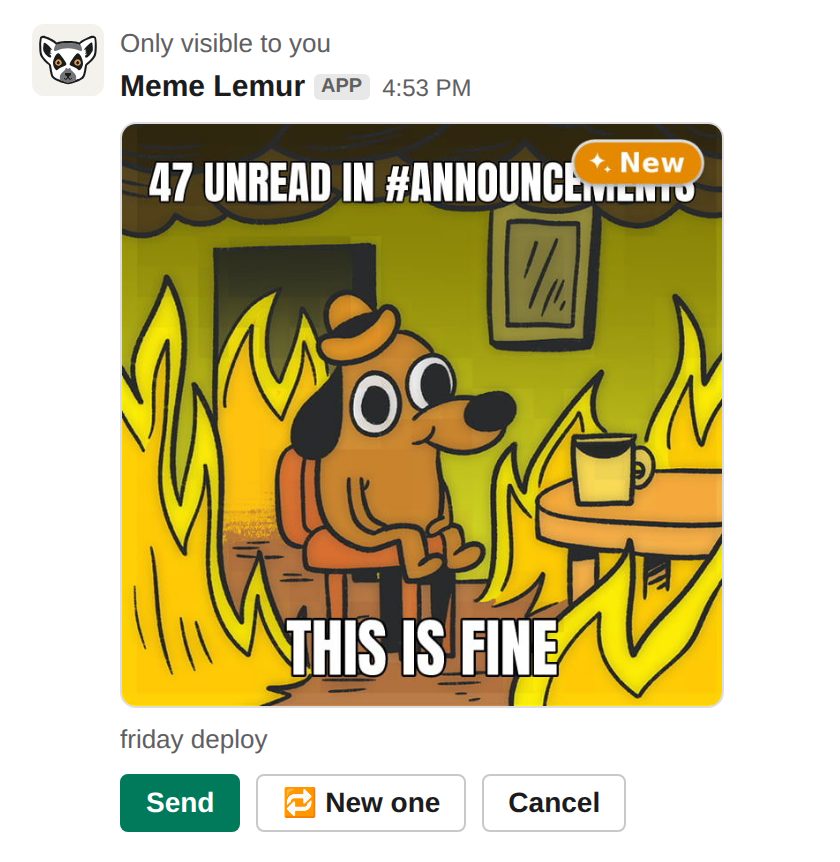
Once you send it, the meme is posted with your request under it:
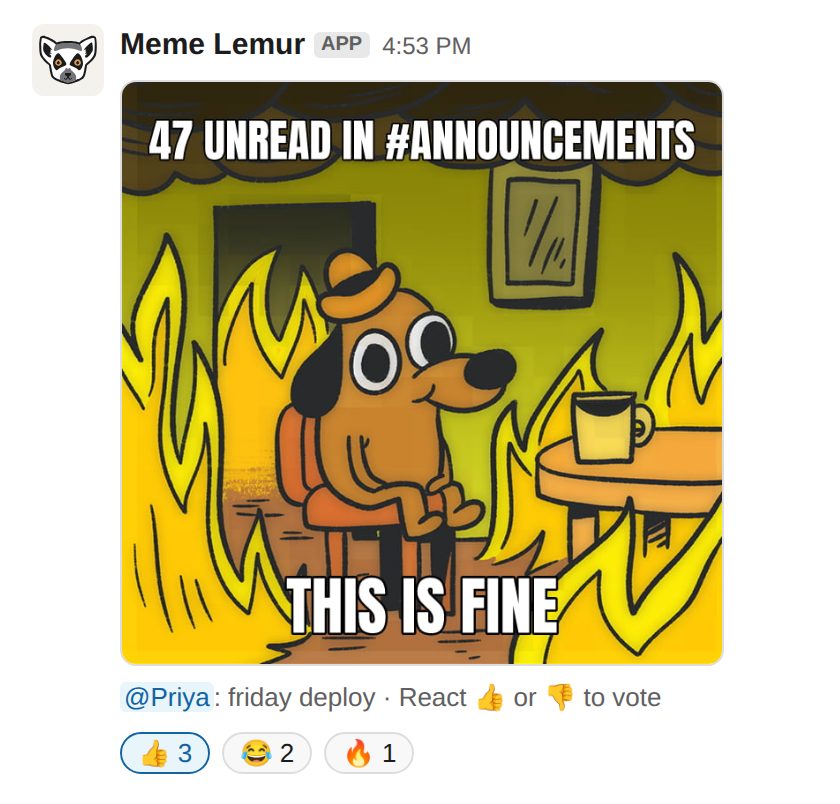
People vote by reacting to it: 👍, 😂, 🔥 or ❤️ is a vote up, and 👎 or 😐 is a vote down. Every other reaction, custom emoji included, is kept as well, so we can learn what lands with your audience.
In Discord #
Type /meme, pick a command from the list, and fill in its fields. Discord shows each field's name as you type:
| Command | Fields | What it does | Setting |
|---|---|---|---|
/meme make |
prompt |
Makes a meme about the prompt, like generate. If a meme already made fits, you get that one. | generate |
/meme new |
prompt |
Always makes a fresh one. | generate |
/meme phrase |
words |
Puts your words on a meme as they are, like match. As you type, it suggests memes your words fit. | match |
/meme search |
words |
Finds a meme your team saved in its library. | search |
/meme render |
template, top, and bottom if the template has a second caption |
Captions the template you name, such as drake, like render. |
render |
/meme space |
name, if you are changing it |
Shows which space the channel uses, or changes it. | |
/meme help |
Lists the commands. |
While you type the words of /meme phrase, Discord lists up to five memes your words fit, such as One Does Not Simply: one does not simply / .... Discord can only list them as text. Pick one to see that meme alone, or send your words without picking, and you see the first three of those memes drawn. More shows the other two, and Back the first three again. If nothing fits your words, they go on a meme as before. The suggestions come from suggest, so they follow your team's blocked templates and prohibited topics, count toward its limits, and are free. Drawing them counts toward your render limit. When that limit is reached, a meme shows as its captions in text, and its Send draws it then.
You see three memes to pick from, numbered, and nobody else sees them. Send 1, Send 2 or Send 3 posts that one to the channel, New ones swaps all three for others, and Cancel throws them away. Suggestions have More or Back in place of New ones. /meme render and a picked suggestion show the one meme you asked for, with a plain Send.
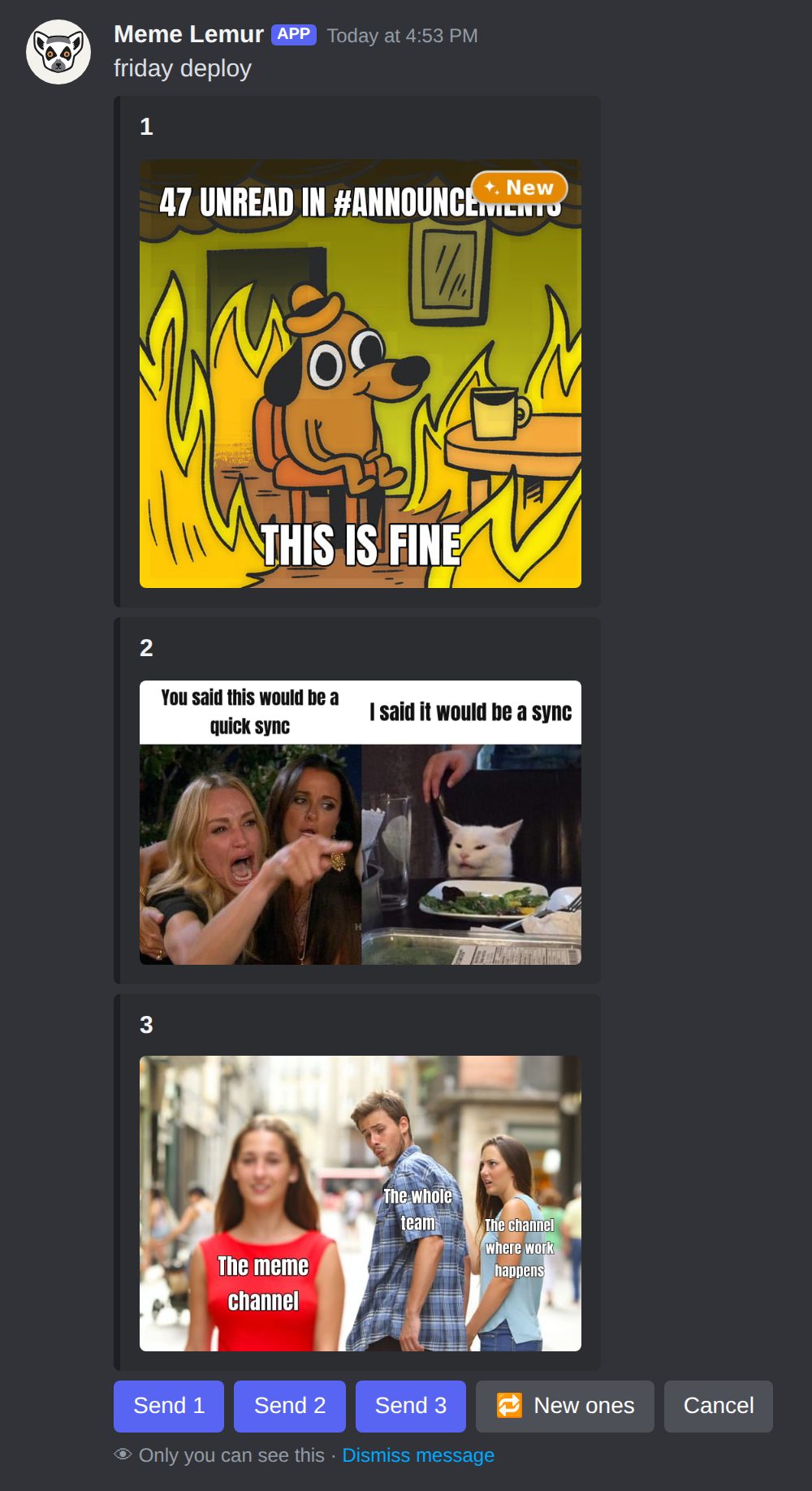
Once you send it, the meme is posted with your request and two vote buttons:
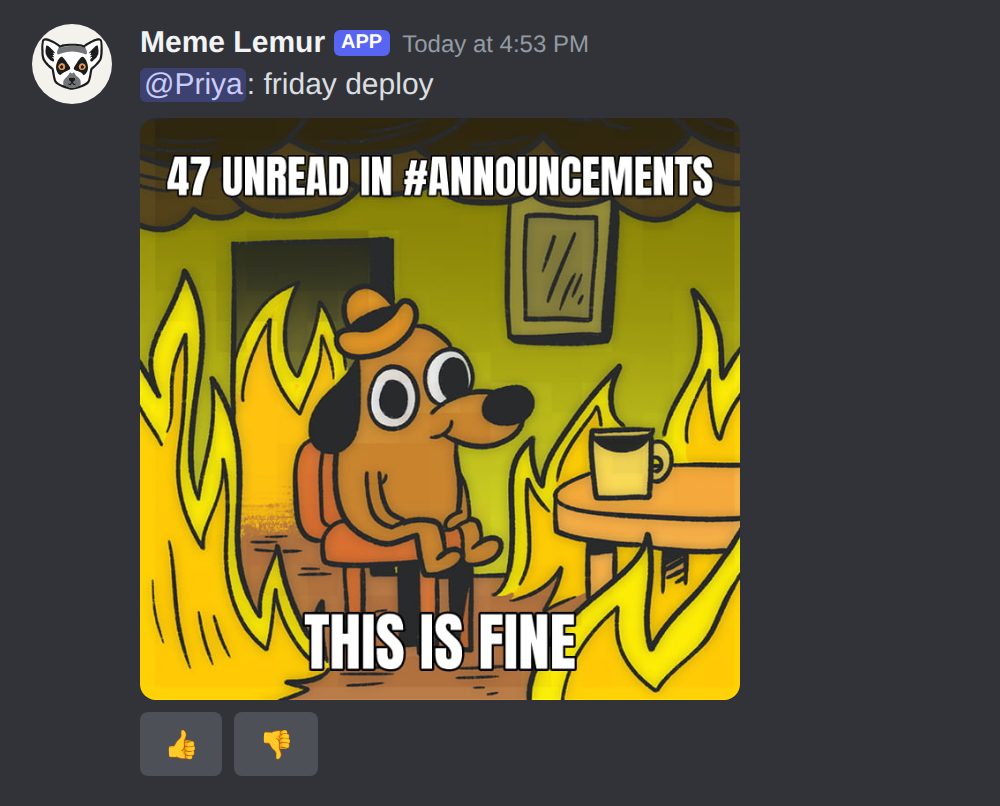
People vote with the 👍 and 👎 buttons under it. Reactions in Discord are not read.
What it costs #
Nothing. Chat memes are free and don't touch your credit. They still follow your prohibited topics, blocked tags and space settings, and they show up in your usage at a price of 0.
| Free team | Paid team | |
|---|---|---|
| New memes a day, in each app | 50 | 1,000 |
| The mark on chat memes | Always memelemur.com | Your own choice, including none |
Teams on a contract or the private vault can have a higher daily number. Ask us, and it shows as chatDailyModelCalls in your settings.
Your team counts as paid if it's billed by contract, or if it has paid at least $10 for credit in the last 30 days. It stays paid for 7 days after that, so a payment ageing out doesn't take anything away overnight. The free starter credit doesn't count.
Only memes our caption model writes count toward the day, and so do /meme new, New one and New ones, which always write. Three memes to pick from in Discord count once, because they come from one request. Sending a meme doesn't count again. If someone has already made a meme that fits, you get that one, and that still works after you hit the cap. The day resets at midnight UTC.
Connect a workspace or a server #
A team owner does this under Settings in the Jungle Gym, with Add to Slack or Add to Discord. The space selected at the top of the page becomes the default space for that workspace or server. Each workspace or server can be connected to one team at a time.
POST /v1/chat/:platform/install-link
Returns the address to send an owner to, for slack or discord. The link works for fifteen minutes. It needs an owner or an admin API key.
| Field | Type | What it does |
|---|---|---|
space |
string or null | The default space for commands from that workspace or server. Leave it out for no space. |
curl -X POST https://api.memelemur.com/v1/chat/slack/install-link \
  -H "Authorization: Bearer $MEMELEMUR_ADMIN_KEY" \
  -H "Content-Type: application/json" \
-d '{"space": "community-42"}'{ "url": "https://slack.com/oauth/v2/authorize?client_id=...&scope=commands%2Cchat%3Awrite%2Cchat%3Awrite.public%2Creactions%3Aread%2Cusers%3Aread&redirect_uri=...&state=..." }Give a channel its own space #
A channel often belongs to one community, so it can use a space of its own. In the channel, a Slack workspace admin, or someone on Discord who can manage the server, types /meme space <name>. /meme space none goes back to the default, and /meme space on its own shows what the channel uses. Anyone can check it, but only an admin can change it, and only to a space your team has already created.
See what's connected #
GET /v1/chat
apps says which apps you can add. installs lists your connected workspaces and servers, each with the channels that have a space of their own.
curl https://api.memelemur.com/v1/chat \
-H "Authorization: Bearer $MEMELEMUR_KEY"{
"apps": { "slack": true, "discord": true },
"installs": [
{
"id": "chat_9k2mfq0x7d1c4b8a", "platform": "slack", "externalId": "T024BE7LD", "externalName": "Acme",
"space": null, "installedBy": "olive@acme.example", "installedAt": "2026-10-03T09:12:44.018Z",
"channels": [{ "channelId": "C07", "channelName": "design-memes", "space": "design", "setBy": "slack:U42", "setAt": "2026-10-03T10:01:12.380Z" }]
}
]
}Disconnect #
DELETE /v1/chat/installs/:id
Disconnects the workspace or the server and returns 204 with no body. /meme then says it isn't connected, so uninstall the app there too if you want the command gone. It needs an owner or an admin API key.
curl -X DELETE https://api.memelemur.com/v1/chat/installs/chat_9k2mfq0x7d1c4b8a \
  -H "Authorization: Bearer $MEMELEMUR_ADMIN_KEY"
Turn commands off #
chatCommands in your settings turns each command on or off. They all start on. A command that's off says so and costs nothing. A space can turn a command off for itself, but can't turn on one your team turned off.
curl -X PUT https://api.memelemur.com/v1/settings \
  -H "Authorization: Bearer $MEMELEMUR_KEY" \
  -H "Content-Type: application/json" \
  -d '{"chatCommands": {"generate": false, "match": false, "search": true, "render": true}}'